Windows
No action is required on Windows.
Linux
After the CA certificate change, you may need to reinstall the new certificates for the eth network connection to work again. The same applies when setting up the connection for the first time.
Download the Root CA from pkiaia.ethz.ch/aia/ETHZRootCA2020.pem and the Intermediate CA from pkiaia.ethz.ch/aia/ETHZIssuingCA2020.pem. For the exact steps to install the certificates and connect to an 802.1X network, please refer to your distribution's documentation.
macOS
1. Check the certificate
When you join the eth network, macOS shows a dialog asking you to authenticate against radius-service.ethz.ch. Compare the certificate chain shown here (ETHZ Root CA 2020 / ETHZ Issuing CA 2020) with the details on this page before you continue.

2. Certificate not yet trusted
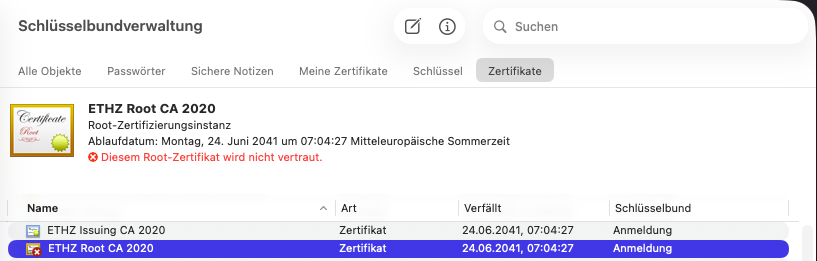
Until the certificate is trusted, Keychain Access lists the ETHZ Root CA 2020 certificate with a warning that it is not trusted. You can fix this either manually or by connecting once through the ETH Toolbox, as shown below.
3. Trust it manually
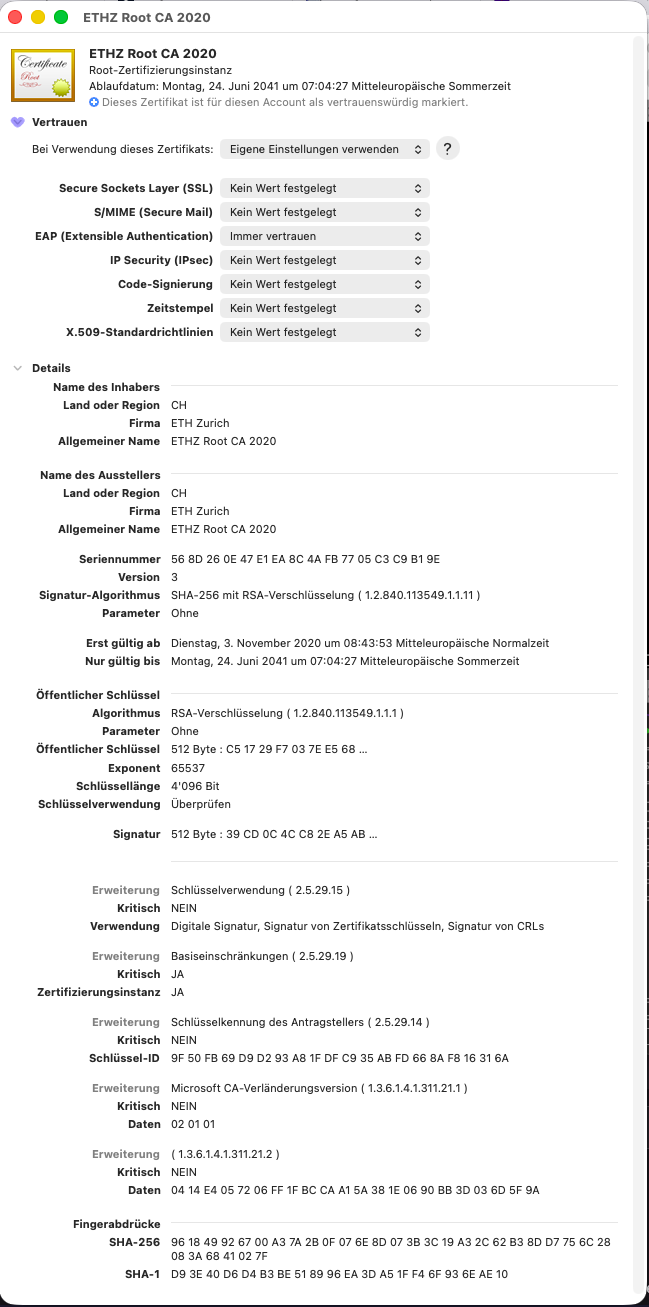
Double-click the ETHZ Root CA 2020 certificate in Keychain Access, open "Trust" and set "EAP (Extensible Authentication)" to "Always Trust". macOS will then mark the certificate as trusted for your account.
4. Trust it via the ETH Toolbox
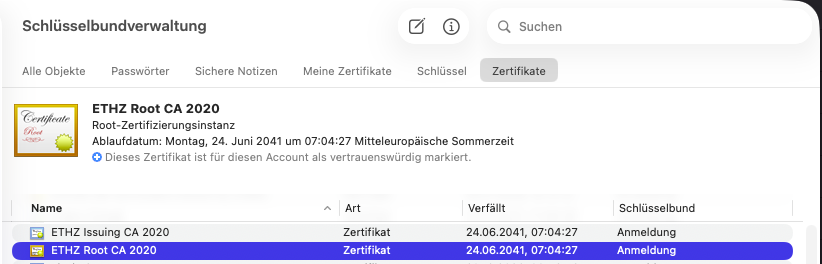
Alternatively, connect once using the ETH Toolbox: it configures the trust setting for you automatically, so Keychain Access shows the certificate as trusted without any manual steps.
iOS
You can also connect to eduroam using the eduroam Configuration Assistant Tool (CAT), which configures everything automatically.
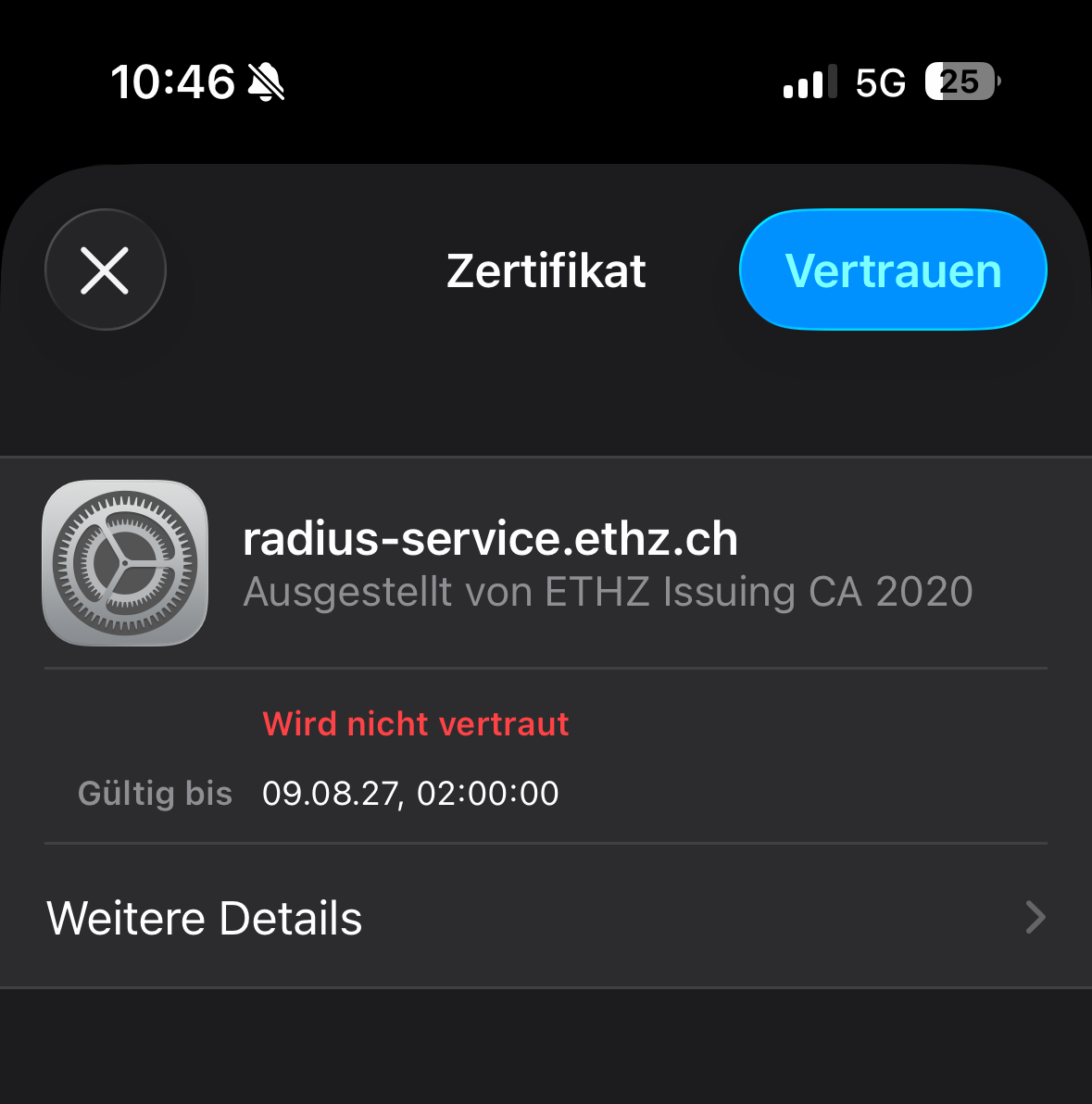
Until you confirm it, the certificate is marked as "Wird nicht vertraut" (not trusted), even though it was correctly issued by the ETHZ Issuing CA 2020.
Android
You can also connect to eduroam using the eduroam Configuration Assistant Tool (CAT), which configures everything automatically.
1. eduroam does not connect
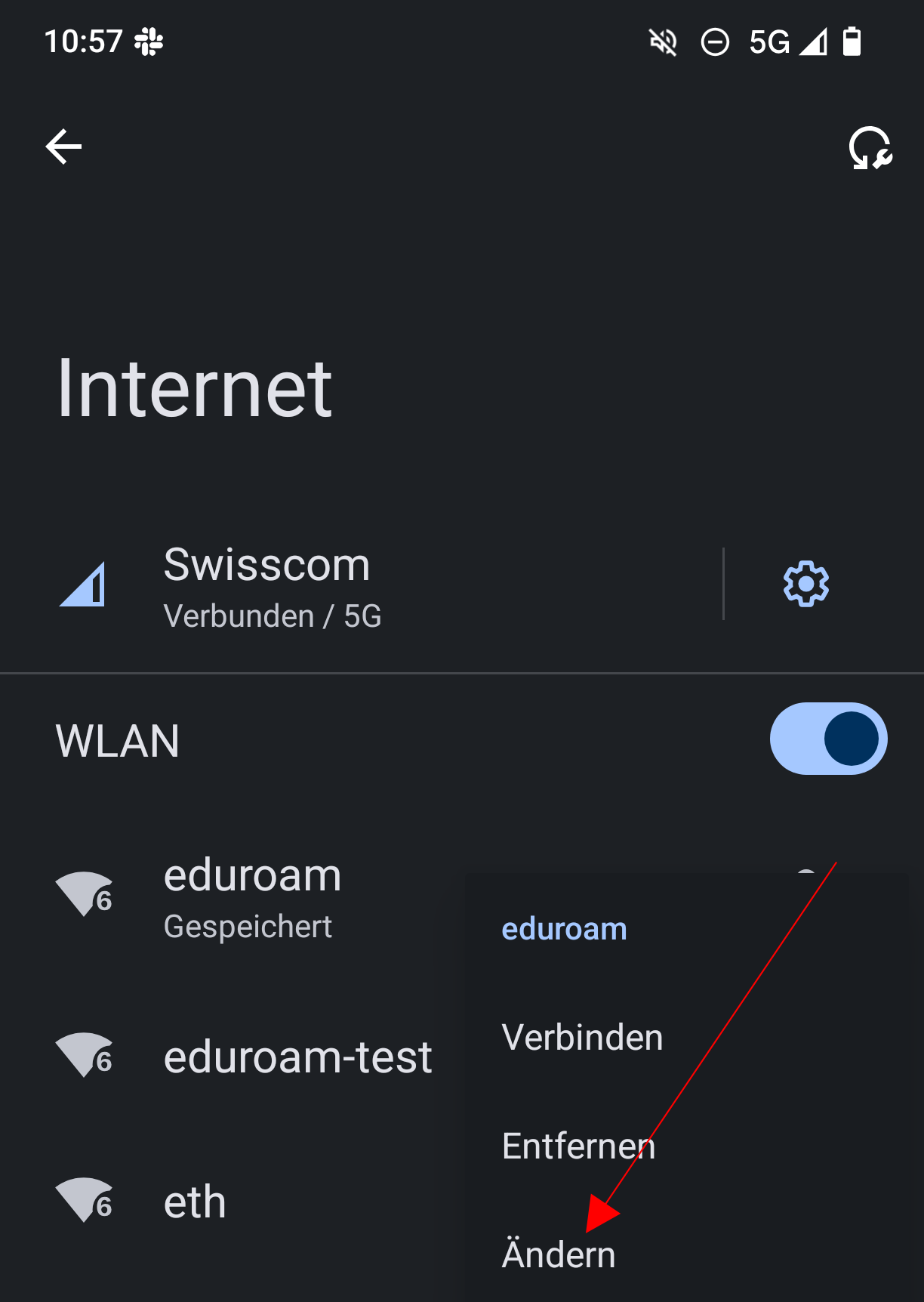
If eduroam shows up as "Gespeichert" (saved) but never actually connects, Android is missing the CA certificate it needs to trust our Radius server. Long-press the eduroam entry to edit its settings, as shown in the next step.

2. Edit the network
Long-press the eduroam entry in the Wi-Fi list and tap "Ändern" (Modify) in the menu that pops up to open its settings.
3. Install the CA certificate
Open the "CA-Zertifikat" dropdown and tap "Zertifikate installieren" to install a new certificate, or select "ETHZ Root" directly if you installed it before. If you have not downloaded it yet, get the Root CA from pkiaia.ethz.ch/aia/ETHZRootCA2020.pem first. Or scan the QR code to download the certificate directly.

4. Select the downloaded certificate
Android opens a file browser to pick the certificate to install. Navigate to your Downloads folder and select the ETHZRootCA2020.pem.crt file you downloaded.

5. Save the network
Check that "CA-Zertifikat" now shows "ETHZ Root" and fill in your identity. Students use username@student-net.ethz.ch, staff use username@staff-net.ethz.ch. Then tap "Speichern" to save and connect.
Students

Staff
